Images Are Usually the Biggest Performance Bottleneck
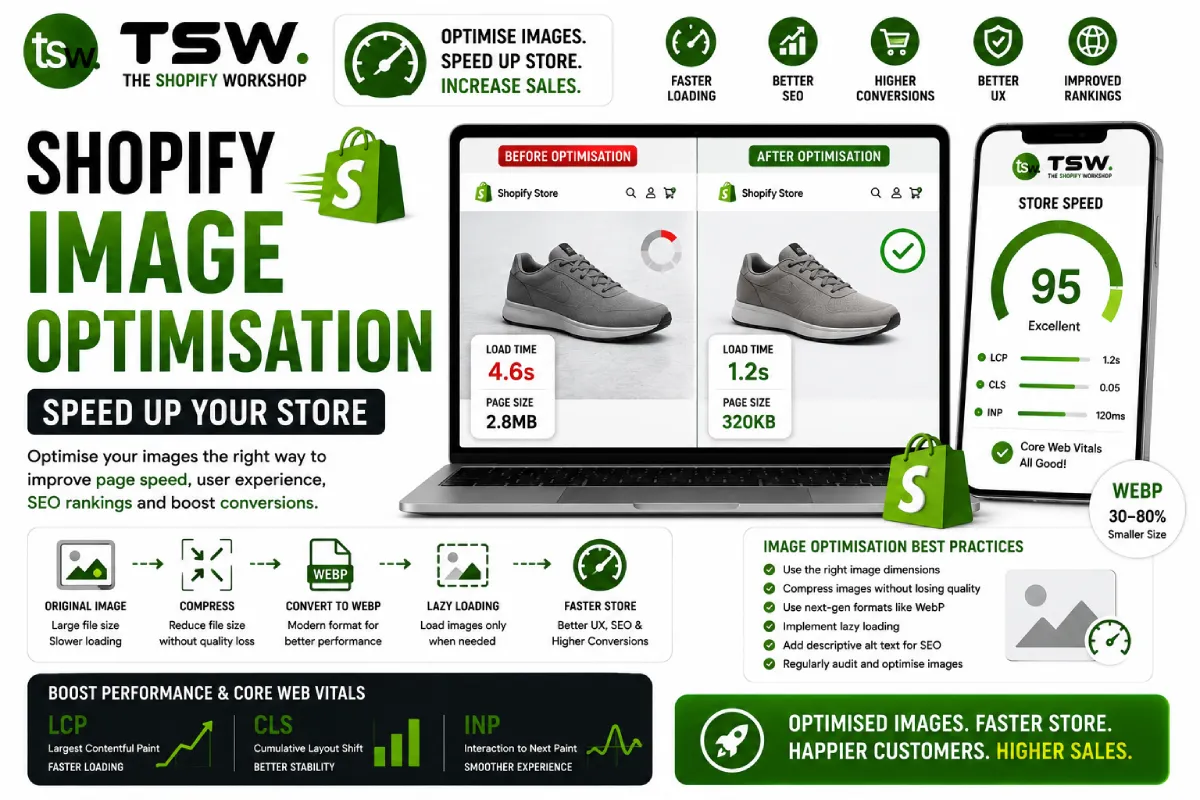
Images account for 50-80% of total page weight on most Shopify stores. Optimising them is the single most impactful thing you can do for performance. Even basic optimisation can reduce page weight by 40-60%, dramatically improving load times and Core Web Vitals scores.
Image Format Strategy
WebP: The Universal Choice
WebP provides 25-35% better compression than JPEG with equivalent quality. Shopify’s CDN automatically serves WebP to supported browsers when you use the image_url Liquid filter. Over 95% of browsers now support WebP.
AVIF: The Next Generation
AVIF offers 50% better compression than JPEG and 20% better than WebP. Browser support is growing rapidly. Shopify’s CDN delivers AVIF automatically to supporting browsers, making adoption seamless.
When to Use PNG
Reserve PNG for images requiring transparency — logos, icons, and product cutouts. Even then, consider WebP with alpha transparency for better compression. Never use PNG for photographs.
Compression Best Practices
Upload Quality
Upload product images at 2048×2048 pixels maximum. Shopify resizes on-demand through its CDN, so uploading larger images wastes storage without improving quality. Use 80-85% JPEG quality for the best balance of file size and visual fidelity.
Batch Compression Tools
Before uploading to Shopify, compress images using tools like ShortPixel, TinyPNG, or Squoosh. For bulk operations, use command-line tools like ImageMagick or sharp (Node.js) to automate compression across your entire catalogue.
Responsive Images in Liquid
Srcset Implementation
Use Shopify’s image_url filter with width parameters to generate multiple image sizes. Implement srcset attributes that let browsers choose the optimal size for each viewport. Include a sizes attribute to guide browser selection.
Art Direction
Use the picture element for art-directed responsive images — showing different crops for mobile versus desktop. A product shot might show a tight crop on mobile and a lifestyle context on desktop.
Lazy Loading Strategy
What to Lazy Load
Lazy load images below the fold — product grid items not visible on initial load, related products, blog post thumbnails, and footer images. Never lazy load the hero image, first product image, or any LCP candidate.
Implementation
Use the native loading="lazy" attribute for broad compatibility. For the LCP image, use loading="eager" with fetchpriority="high" and add a preload link in the head.
CDN and Caching
Shopify’s CDN handles image delivery globally. Use their hosted image URLs (via image_url filter) rather than external hosting. This ensures optimal caching headers, format negotiation, and edge delivery for every visitor worldwide.
Product Photography Tips
- Shoot at 2x your display size for Retina support
- Maintain consistent dimensions across product images for uniform grids
- Use white or neutral backgrounds for easy subject isolation
- Include lifestyle shots alongside product-only images
- Optimise hero and banner images separately — they have different requirements
Need professional image optimisation? Our performance team handles image optimisation as part of comprehensive speed services.