
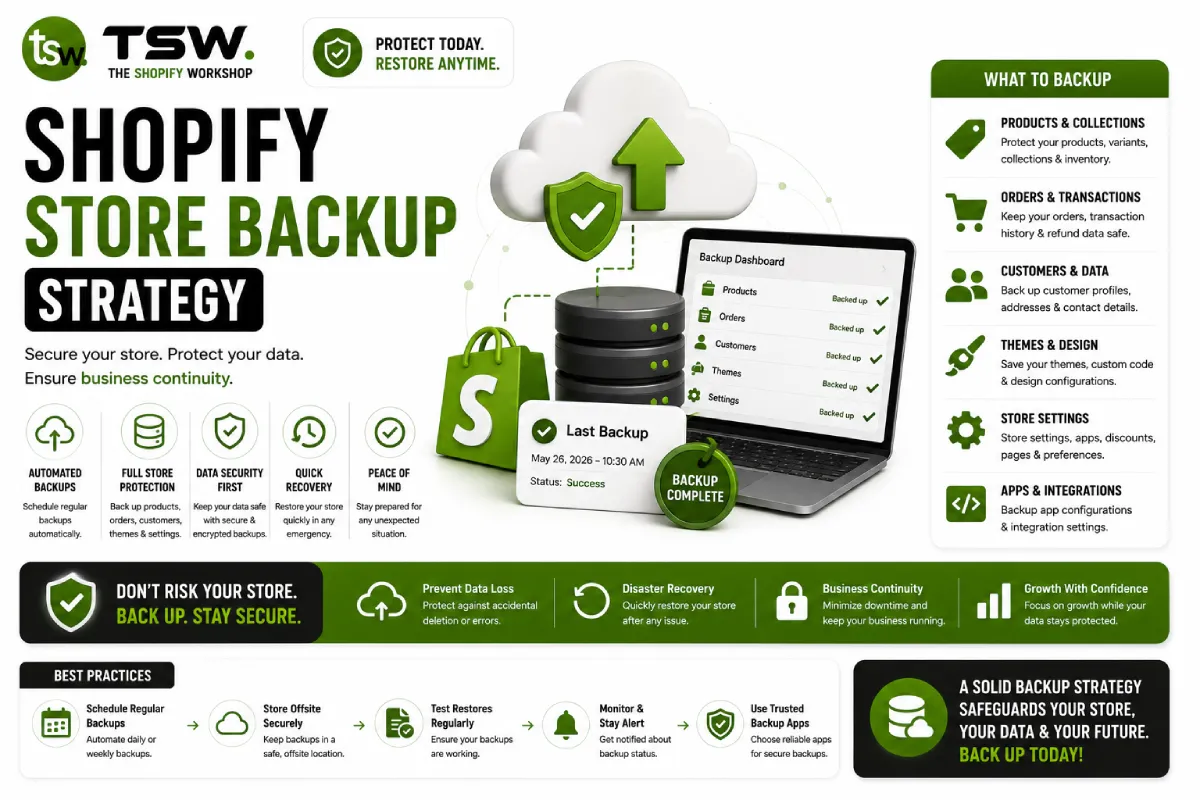
Why You Need a Shopify Backup Strategy
Shopify is a reliable platform, but data loss can happen from many directions: accidental bulk product deletions, theme updates that overwrite customisations, third-party apps corrupting data, or human error during CSV imports. Shopify does not provide a built-in full-store backup or one-click restore — making it your responsibility to protect your business data.
A proper backup strategy is part of responsible ecommerce operations. The question isn’t whether you’ll need a backup — it’s when.
What to Back Up
Theme Code
Your theme is your storefront — lose it, and you’re starting from scratch. Use Git version control for all theme development, pushing every change to a remote repository (GitHub, GitLab, Bitbucket). This provides complete version history and the ability to roll back any change instantly. If you’re not using version control, download your theme as a ZIP file monthly at minimum.
Don’t forget theme settings. Your settings_data.json file contains all customiser configurations — section layouts, colour choices, typography settings. A theme backup without settings data means rebuilding your design from scratch. Professional theme development always includes version-controlled settings management.
Product Data
Export your product catalogue regularly through Settings → Export in the Shopify admin. This CSV includes titles, descriptions, prices, variants, images URLs, inventory levels, and metafields. For stores with extensive metafield usage or complex variant structures, supplement CSV exports with API-based backups that capture the full data model.
Customer Data
Customer records — including order history, addresses, tags, and marketing preferences — are critical business assets. Export customer data monthly through Shopify’s admin export. For stores with customer metafields or extensive tagging systems, use the Admin API to capture the complete customer profile.
Content and Pages
Blog posts, static pages, navigation menus, and metaobject entries aren’t included in standard exports. Use the Admin API or a dedicated backup app to capture this content. Losing years of SEO-optimised blog content can devastate your organic traffic.
Automated Backup Solutions
Manual exports are better than nothing, but automated solutions ensure consistency. Dedicated Shopify backup apps like Rewind or BackupMaster run daily automatic backups covering products, collections, customers, orders, pages, blogs, theme files, and more. They provide point-in-time restore capabilities — roll back a single product, a collection, or your entire store to any previous state.
For enterprise merchants, build custom backup pipelines using the Shopify Admin API. Schedule nightly API calls that export all resources to cloud storage (AWS S3, Google Cloud Storage), providing complete control over backup frequency, retention, and restore procedures.
Testing Your Backup Recovery
A backup you’ve never tested is a backup you can’t trust. Quarterly, perform a test restore: pick a random product, delete it from a development store, and restore from backup. Verify that all data — images, variants, metafields, SEO metadata — restores correctly. Document the recovery procedure so any team member can execute it under pressure.
Disaster Recovery Planning
Beyond backups, create a written disaster recovery plan covering scenarios: accidental deletion (restore from backup), theme corruption (deploy from Git), app data loss (contact app vendor + restore), and account compromise (Shopify support + credential rotation). Keep this document accessible to your team and review it annually. Our operations team helps merchants build robust disaster recovery plans tailored to their store complexity.