Why Theme QA Matters
A single broken element on your Shopify store — an unclickable add-to-cart button, a misaligned product image, or a checkout error — can cost thousands in lost revenue. Systematic quality assurance catches these issues before they reach customers. Yet most merchants push theme changes live with minimal testing, relying on customers to report problems after the damage is done.
Professional theme development includes QA as a fundamental part of the process, not an afterthought. Here’s how to build a testing workflow that protects your revenue.
Setting Up a Testing Environment
Never test on your live theme. Shopify allows unlimited unpublished themes — use them. Duplicate your live theme, make changes on the copy, and preview it using the theme preview URL. This URL lets you browse your entire store as customers would see it, without affecting live traffic.
For team-based development, use Shopify CLI with the shopify theme dev command to run a local development server. Changes sync in real-time, and hot module replacement speeds up the development-test cycle significantly.
Preview Environments with GitHub Integration
Connect your theme repository to Shopify’s GitHub integration for automatic preview deployments. Every pull request generates a unique preview URL, enabling team members to review changes visually before merging. This workflow catches visual regressions early and facilitates design review.
Cross-Browser and Device Testing
Your store must work across Chrome, Safari, Firefox, and Edge — plus their mobile variants. Prioritise testing on the devices your analytics show customers actually use. Typically, mobile Safari and Chrome account for 70-80% of ecommerce traffic, making them your primary testing targets.
Use browser developer tools to simulate different screen sizes, but don’t rely solely on simulation. Test on real devices whenever possible — touch interactions, scroll behaviour, and font rendering differ significantly from desktop simulation. Focus particularly on the checkout flow and product pages, where conversion happens.
Functional Testing Checklist
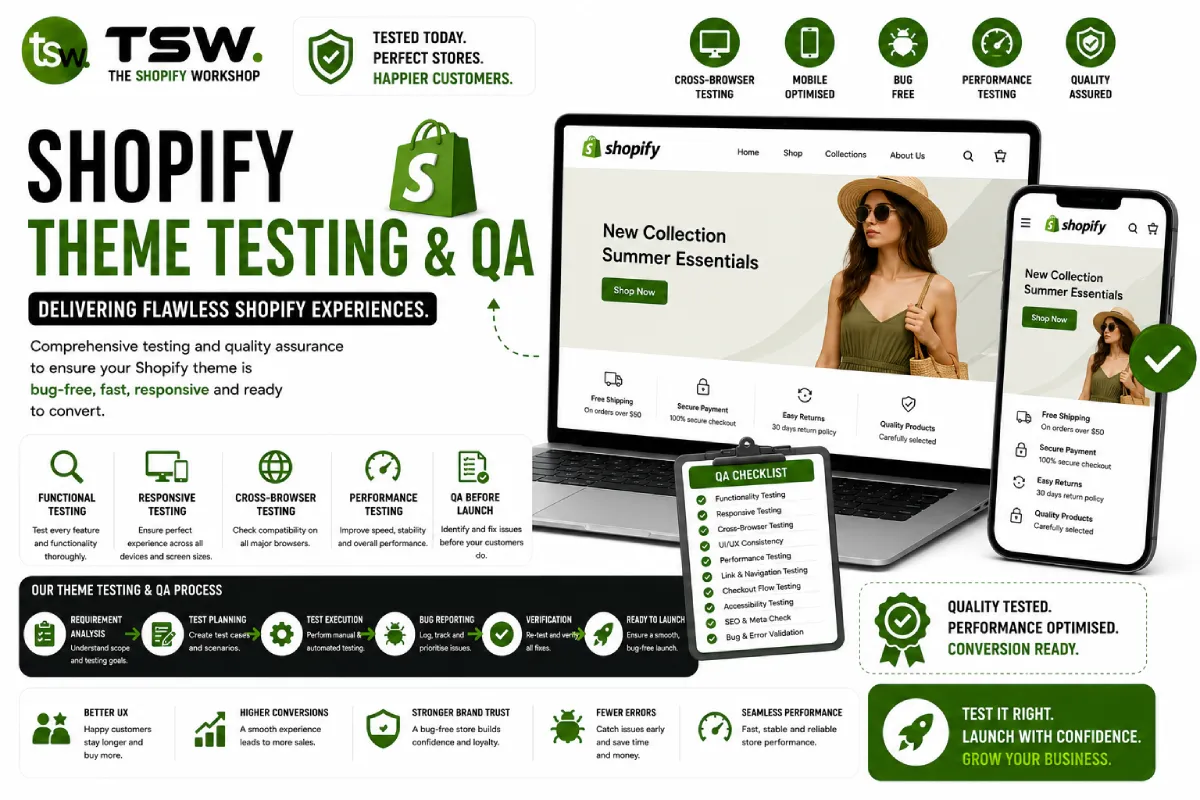
Create a standardised checklist covering critical user journeys: homepage to product, search to purchase, collection filtering, cart modification, discount code application, and account creation. Run through each journey on every theme update. Test edge cases — empty carts, out-of-stock products, products with many variants, very long product titles — that developers often overlook.
Verify that third-party app integrations still function correctly after theme changes. Apps that inject content via ScriptTag or theme app extensions can break when template structure changes.
Performance Testing
Every theme change should include a performance check. Run Google Lighthouse before and after changes to catch regressions. Pay particular attention to Largest Contentful Paint (LCP) and Cumulative Layout Shift (CLS) — the metrics Google uses for ranking. A theme change that improves design but degrades Core Web Vitals may hurt organic traffic.
Automated Testing Tools
For stores with frequent theme updates, invest in automated testing. Tools like Cypress, Playwright, or Ghost Inspector can run your functional checklist automatically on every deployment. While the initial setup requires development time, automated tests pay for themselves by catching regressions that manual testing misses. Contact our development team to set up automated QA for your Shopify store.